
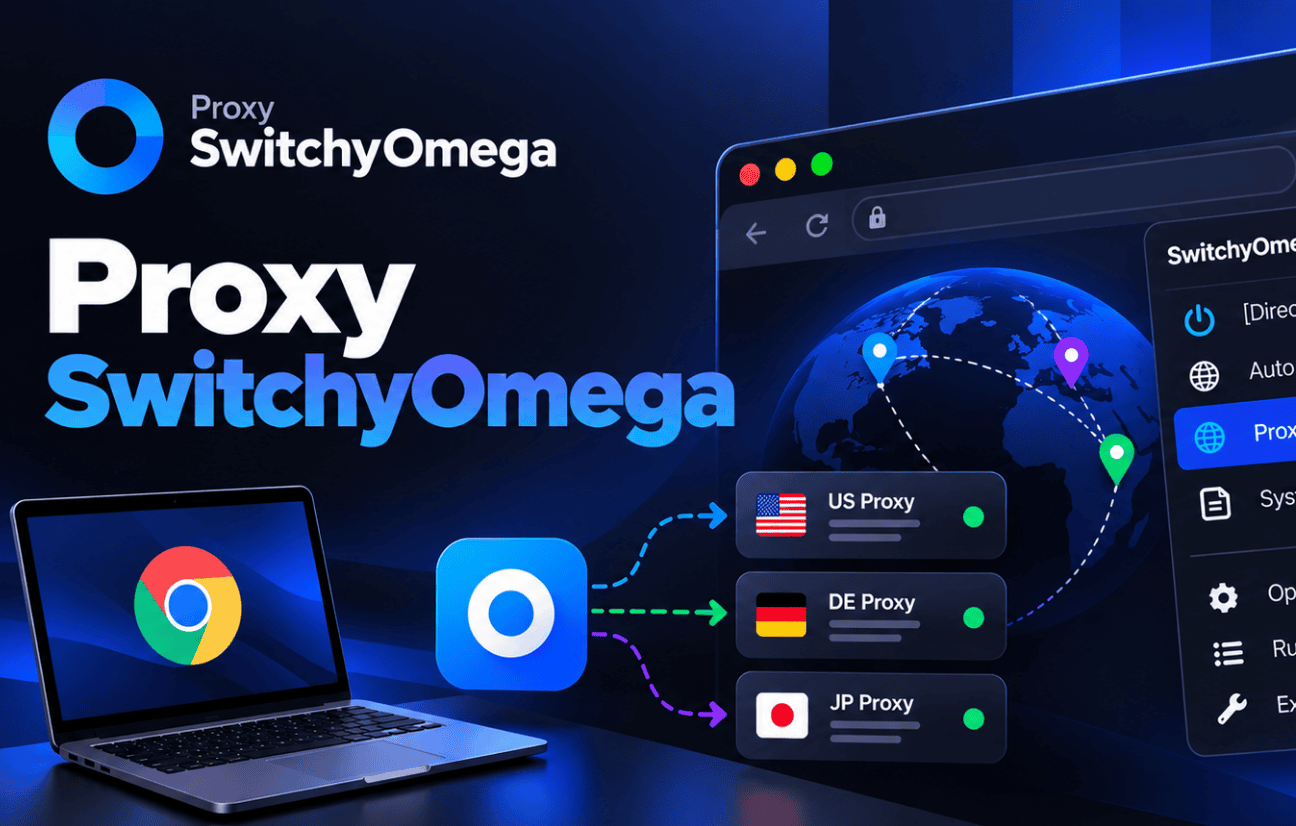
If you install Proxy SwitchyOmega in Chrome today by following an older tutorial, there is a good chance you end up searching for an extension that no longer works there. The original build was written for Manifest V2, and Chrome has retired that platform. What still works is a maintained fork called Proxy SwitchyOmega 3 (ZeroOmega), and on Firefox the classic extension is still around. Once you have the right version, the setup itself takes about five minutes.
I use this extension daily for checking localized search results and testing landing pages from other countries. This guide covers which version to install, how to build a profile, the SOCKS5 login trap that catches almost everyone in Chrome, auto switch rules, and how I connect it to Proxy-Cheap.
Quick answer
- Chrome, Edge, Brave: install Proxy SwitchyOmega 3 (ZeroOmega). The original extension does not run on current Chromium builds.
- Firefox: either the original SwitchyOmega or ZeroOmega works.
- Logging in with a username and password in Chrome? Pick HTTP as the protocol. Chrome extensions cannot pass SOCKS5 credentials.
- Core workflow: Options, New profile, type Proxy, enter server and port, add credentials through the lock icon, Apply changes, then pick the profile from the toolbar icon.
- Best feature most people skip: Auto Switch, which routes specific domains through specific proxies without you touching anything.
What SwitchyOmega actually does
Your browser has one proxy setting. Change it by hand and you dig through system menus, and on Windows and macOS that change often applies to every app on the machine, not only the browser. SwitchyOmega replaces that with saved profiles you flip between from the toolbar. One click sends Chrome through a US server, another sends it through Germany, a third goes direct.
That is the whole idea, and it is why people looking for an omega proxy tool almost always mean this extension. The name gets shortened a lot: proxy omega, omega proxy, Switchy. It is not a proxy service itself. It does not give you an IP address. It is a switchboard for proxies you already have, which is why the quality of the proxies you plug in matters more than any setting inside the extension.
Which Proxy SwitchyOmega version to install
This part has changed more than anything else in the last two years, and most guides have not caught up.
Google phased out Manifest V2 extensions across Chrome stable, finishing in 2025, as laid out in the Chrome Manifest V2 deprecation timeline. The original SwitchyOmega had not been updated in years and never moved to Manifest V3. On current Chrome it either shows as disabled or is gone from the store entirely.
The community picked it up as ZeroOmega, published in the Chrome Web Store as Proxy SwitchyOmega 3. The interface is nearly identical, your old backup files import into it, and it receives updates. When someone searches for proxy switchyomega 3, this fork is what they are after.
Here is how I would choose:
- Chrome, Edge, Brave, Opera: Proxy SwitchyOmega 3 (ZeroOmega) from the official store for your browser.
- Firefox: the original SwitchyOmega extension still installs and works. ZeroOmega also has a Firefox build if you want the same version everywhere.
- Moving from the old extension: export your settings first (Options, Import/Export), then restore that file inside ZeroOmega.
Check the publisher and recent update date on the listing before you click install. Copycat proxy extensions with near identical names show up regularly, and a proxy extension sees every request your browser makes.
Install and build your first profile
After installing, pin the extension so the circle icon sits next to your address bar. Then:
- Click the icon and choose Options. A full settings page opens.
- In the left menu, click New profile.
- Give it a name that describes where it routes, like “US residential” or “DE datacenter”. Vague names such as “Proxy 1” become a problem by the time you have six profiles.
- Choose Proxy Profile as the type and click Create.
- Under Proxy servers, set the protocol for the default row: HTTP, HTTPS, SOCKS4 or SOCKS5. Use whatever your provider lists for that endpoint.
- Type the server address (a hostname or an IP) and the port.
- If your proxy needs credentials, click the small lock icon at the end of the row and enter the username and password.
- Click Apply changes in the left menu. Nothing is saved until you do this, and forgetting it is the most common reason a profile “does nothing”.
To turn it on, click the toolbar icon and pick the profile by name. Pick Direct to go back to your normal connection, or System Proxy to hand control back to your operating system settings.
The SOCKS5 login trap in Chrome
This deserves its own section because it wastes hours. Chrome’s extension proxy API does not support authenticated SOCKS5. You can type a username and password into a SOCKS5 row in ZeroOmega and Chrome will simply not send them. The connection fails, or a login popup keeps reappearing.
There are two clean ways out.
The first is to use HTTP with credentials. Most providers offer the same endpoint over HTTP and SOCKS5, and for browsing, HTTP works perfectly well.
The second is to keep SOCKS5 and authenticate by IP whitelist instead of a password. You register your own public IP in the provider’s dashboard and leave the credential fields empty. Proxy-Cheap supports whitelisting on its static residential proxies and datacenter lines, which is what I use when I want SOCKS5 in Chrome on a home connection with a stable IP.
Firefox does not have this limitation, so authenticated SOCKS5 works there as expected.
Switching profiles and a worked example
Switching is the part SwitchyOmega gets right. Click the icon, pick a profile, and the next request goes through it. No restart, no system dialog.
Here is a real routine of mine. I track how a client page ranks in the US and the UK. I keep two profiles, “US resi” and “UK resi”, both pointing at residential IPs in those countries. I run a search in one, flip, run it again, and compare. With manual settings that would be two trips through system menus per check. With the extension it is two clicks.
For bulk page loads where I just need speed, say opening a few hundred public product pages to check prices, I keep a third profile on datacenter proxies. Those IPs are fast and priced per IP, which suits sustained browser work on public pages.
Auto Switch: stop clicking at all
Manual switching is fine for three profiles. Past that, Auto Switch is where the extension earns its keep. It is a rules profile: every request is matched against your list, and each rule sends matching traffic to a named profile.
- In Options, create a new profile and choose Switch Profile as the type. Name it “Auto”.
- Add a rule. The condition type is usually Host wildcard.
- Enter a pattern, for example
*.co.uk, and set the profile to your UK proxy. - Add
*.depointed at your German proxy. - Set the Default row at the bottom to Direct, so anything without a rule uses your normal connection.
- Apply changes and select “Auto” from the toolbar icon.
Now UK sites go through the UK proxy, German sites through Germany, and your email, banking and work tools go direct. I prefer this to per profile exclusions, because the logic lives in one place and you can read it at a glance.
If you still want exclusions inside a single proxy profile, scroll to the exclusion box at the bottom of that profile and add hosts one per line, such as localhost or *.yourcompany.com.
Connecting Proxy-Cheap to SwitchyOmega
The dashboard gives you everything the profile needs: host, port, username and password. Which product you choose changes how you fill in the profile.
Rotating residential. You connect to a single gateway, such as proxy-us.proxy-cheap.com on port 5959, and the exit IP changes behind it. Authentication is username and password, so in Chrome set the protocol to HTTP. Country and session settings are usually encoded in the username string the dashboard generates, which means you can create several SwitchyOmega profiles that use the same gateway with different usernames, one per country. Billing on rotating residential proxies is pay as you go, so idle profiles cost nothing.
Static residential and datacenter. Each proxy is a fixed IP with its own port. One profile per IP works well when you need the same address every session, for example when logging into a dashboard that expects a consistent location. These support IP whitelisting, which is also your route to SOCKS5 in Chrome as covered above.
Paste the values in, click Apply changes, and test before you trust it.
How to confirm it works
Activate the profile, open a new tab, and load an IP lookup site such as ipinfo.io. The address and location shown should belong to the proxy, not to your own connection. If you set up an Auto Switch profile, test a domain that matches a rule and one that does not, and check that only the first shows the proxy IP.
If you have several profiles, switch through each one and reload. Every profile should report a different location. If two show the same, you probably copied a host or username without changing it.
When something breaks
Most failures trace back to a short list.
- Nothing changes after selecting the profile. You did not click Apply changes, or you selected the wrong profile name. Open Options and check the profile is saved.
- A login popup keeps returning. Wrong credentials, or you are using SOCKS5 with a password in Chrome. Switch the row to HTTP.
- Connection refused or timing out. Recheck host and port character by character. Then confirm the plan is active in your provider dashboard, since an expired subscription looks identical to a typo.
- Works on one profile, not another. Isolate it. If only one proxy fails, the issue sits with that endpoint, not the extension.
- Whitelist authentication suddenly stops. Your home IP changed. Update the whitelisted address in the dashboard.
- Pages load partially. Antivirus or a corporate firewall inspecting proxy traffic is a common cause. Test on a different network before changing settings.
- Odd behavior after many edits. Clear cache and cookies for the site you are testing, then reload with the profile active.
One habit saves the most time: export a backup from Options after any big change. Restoring a working file beats rebuilding twelve profiles by hand, and the same file moves your setup to another browser or another machine.
FAQ
Is Proxy SwitchyOmega still available for Chrome?
The original version no longer runs on current Chrome because it was never updated for Manifest V3. Install Proxy SwitchyOmega 3 (ZeroOmega) instead. It keeps the same interface and accepts backup files from the old extension.
What is the difference between Proxy SwitchyOmega 3 and the original?
Version 3 is the community maintained ZeroOmega fork, rebuilt for Manifest V3 so it runs in modern Chromium browsers. Profiles, Auto Switch rules and backups work the same way. The main practical difference is that it still gets updates.
Is SwitchyOmega a free proxy?
No. It is a free extension that manages proxies, but it does not supply any IP addresses. You need proxies from a provider and you enter their details into the extension.
Why does my SOCKS5 proxy ask for a password over and over in Chrome?
Chrome extensions cannot send SOCKS5 credentials. Change the protocol to HTTP, or switch to IP whitelist authentication and leave the username and password empty.
Can I use different proxies for different websites at the same time?
Yes, with a Switch Profile (Auto Switch). You write rules by domain pattern and each one points to a proxy profile, with a default for everything else.
Does SwitchyOmega change proxy settings for my whole computer?
No. It only affects the browser it is installed in. Other apps keep using your normal connection unless you choose System Proxy, which defers to whatever your operating system is set to.
Does it work in Edge, Brave and Opera?
Yes. These browsers are built on Chromium, so the ZeroOmega build installs from their extension stores or the Chrome Web Store, depending on the browser.
How do I move my settings to a new computer?
Go to Options, open Import/Export, and download a backup file. On the new machine, install the extension and restore from that file.




Leave feedback about this